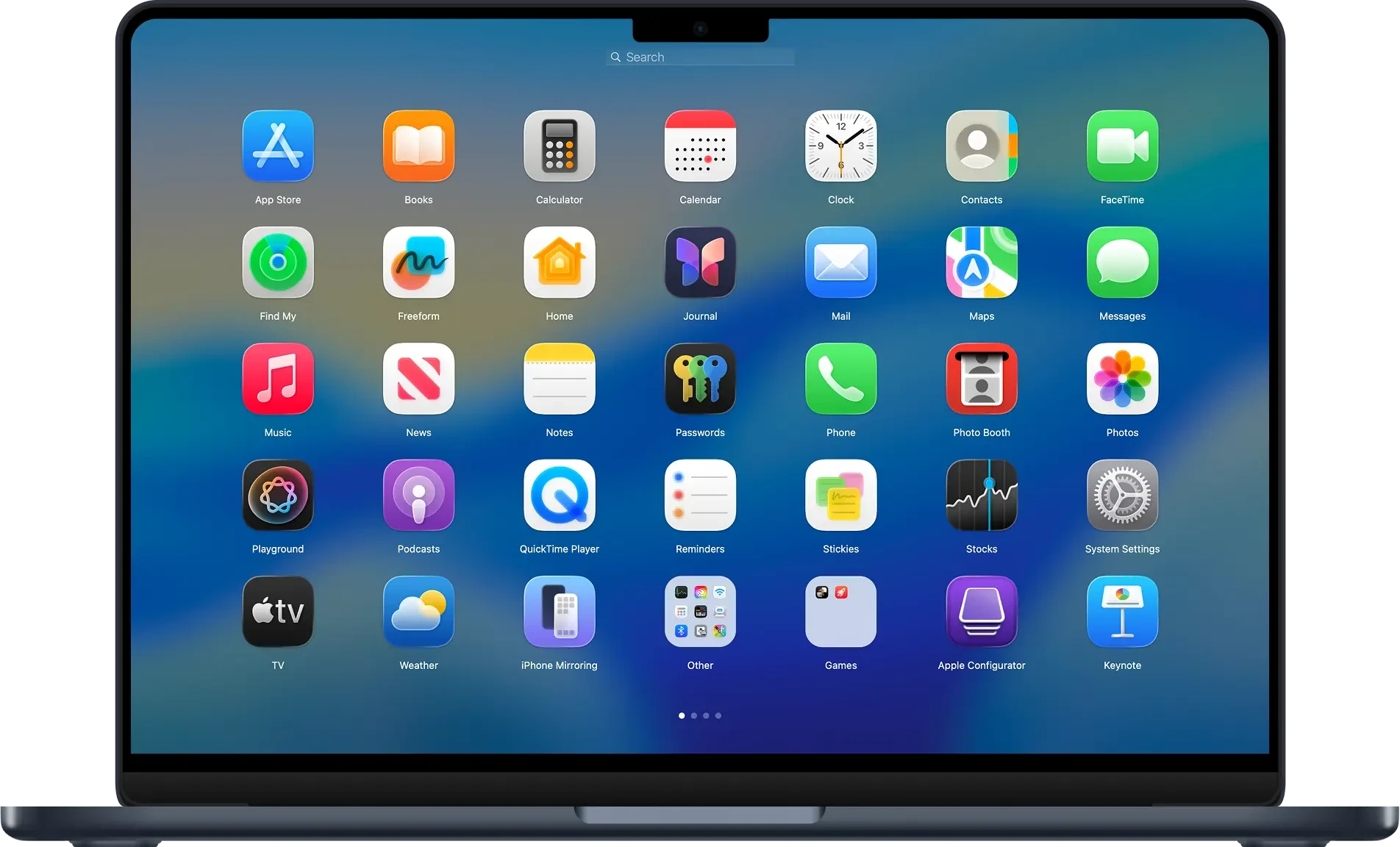
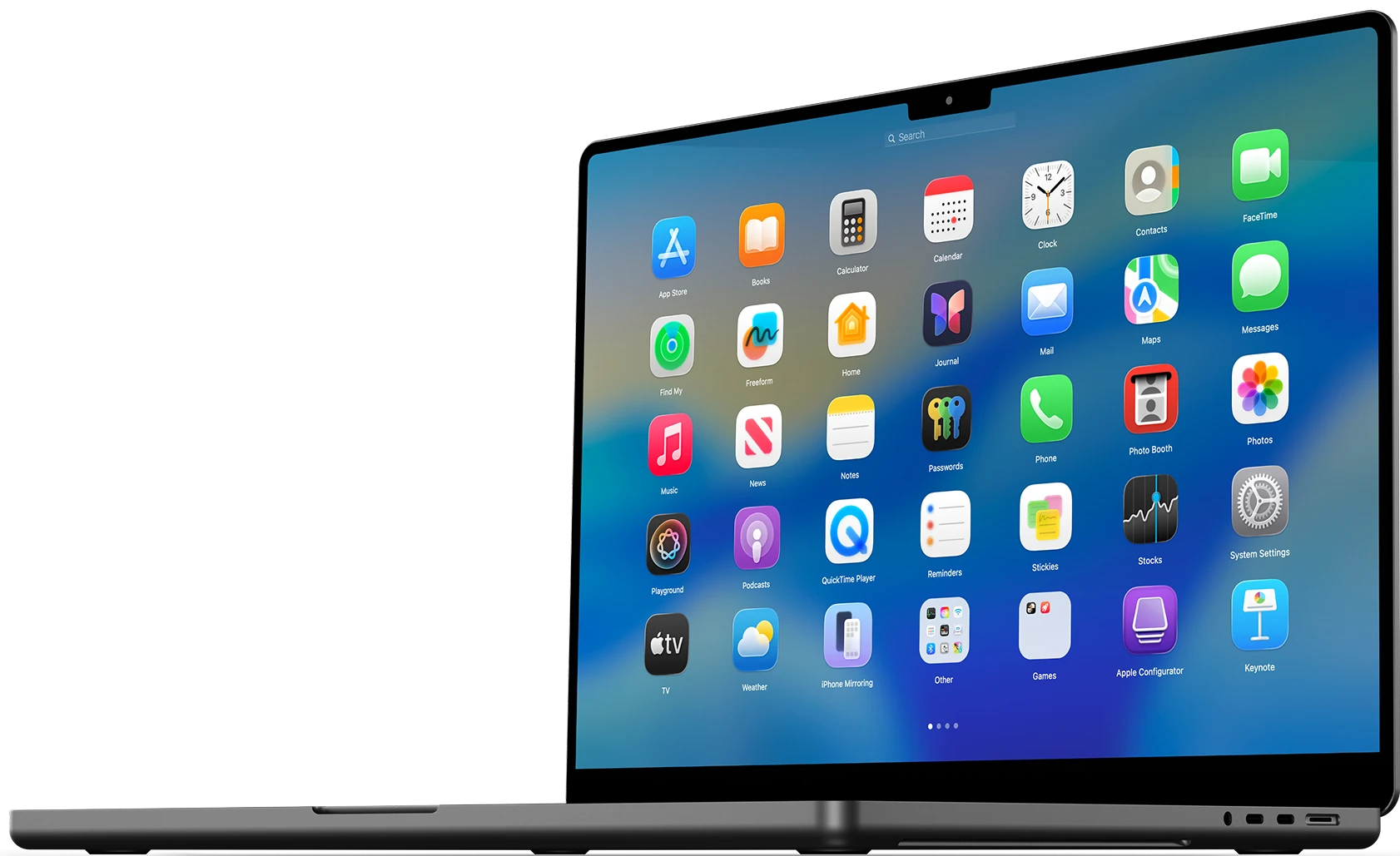
Dr. Buho created BuhoLaunchpad, a third-party macOS tool, to mimic and enhance the traditional Apple Launchpad experience, especially for users of macOS 26 (Tahoe), when the native Launchpad was eliminated. It offers a grid-based, full-screen interface for setting up and starting programs.

An app startup experience that is familiar.

In addition to accurately replicating the iconic Launchpad interface on macOS, BuhoLaunchpad adds the features you’ve always wanted. Take advantage of an easy-to-use grid layout to see all of your apps, search for anything instantaneously, and use drag-and-drop to quickly arrange your workspace.

Completely configurable grid arrangement.

An easy-to-use full-screen grid gives you total control over how your app is laid out. To arrange icons and take advantage of the most practical folder construction, simply drag and drop them. To keep your workflow organized, group related programs into unique folders. In the end, BuhoLaunchpad is an app launcher that genuinely adjusts to you rather than the other way around.

Use a trackpad gesture to launch.

Use well-known four- or five-finger trackpad movements to quickly open or close BuhoLaunchpad from any location. It complies with all of your instructions exactly. Use your favorite tool—keyboard arrows, trackpad motions, mouse rotation, or mouse clicks—to manage your collection of apps.

Simple migration, restoration, and backup.

The layout of your app may be easily backed up and restored. BuhoLaunchpad allows you to backup and restore your ideal app arrangement at any time, in addition to importing your existing Launchpad settings to macOS Tahoe. Updates and various Macs don’t affect your workflow.

Make the arrangement of the app’s components your own.

BuhoLaunchpad gives you total control over how your apps are arranged by allowing you to configure the grid by specifying a custom number of apps in rows and columns. To construct the ideal app grid, adjust the number of rows and columns. BuhoLaunchpad adapts to your needs, whether you prefer a spacious layout or a compact design.

Adjusts to the design of the macOS 26 app icon.

The only Launchpad tool that completely adjusts to macOS 26 Tahoe’s default app icon style is BuhoLaunchpad. BuhoLaunchpad easily adapts to your choices and consistently displays app icons precisely as you would expect, regardless of whether your system is configured to the default, dark, light, or tinted app icon style.


Details

Version 1.7.0
Developer Dr.Buho Inc.
Activation (RG) Not required
Compatibility macOS 11 and later
Size 15 MB
Architecture ARM , x86 (64-bit)
Interface Language English , German , Spanish , Italian , Traditional Chinese , Simplified Chinese , Korean , French , Japanese

FAQ

Run the downloaded image and drag the application to the Applications folder shortcut. Once copying is complete, the application can be launched via Launchpad.
There are so many errors, we can't list them all here. Therefore, we've described all the solutions.
Official updates may result in loss of activation unless otherwise stated in the installation instructions. To update the software from this website, you must download the new version of the software from here (if available) and install it over the version currently installed on your computer
To download large files, it is recommended to use any download manager, for example, FDM (Free Download Manager) For downloading from a file sharing service like Filen.io, it's not recommended to use Safari. Use Google Chrome or the aforementioned FDM browser, for example. To download files via torrent (.torrent file), you need a torrent client, such as Transmission or the aforementioned FDM. Please remember that providers may block access to some websites (1fichier.com, etc.). To bypass these blocks, it is recommended to use a VPN.
The site administration doesn't hack anything. That's the job of release teams and some enthusiasts. They're the ones responsible for ensuring updates are available. But you can hack software yourself by learning reverse engineering.
Definitely not in the comments. The site administration doesn't hack anything, and there's no order desk.
Open System Preferences -> General > Language & Region -> Applications - “+”. Select an app and language. This method works for most apps. The language in Adobe products is usually selected during the installation of the product itself. The language in games is usually changed in the game settings itself. There are exceptions. Don't hesitate to search for information online.
There are many options. The easiest is to use specialized app removal tools, such as App Cleaner & Uninstaller. To remove Adobe products, use the Creative Cloud Cleaner Tool .
The site offers a paid service: remote assistance (via AnyDesk, Zoom, Skype) with the installation of any applications (not just those from this site) on any Mac or PC

Leave a Comment

Version 1.7.0
Developer Dr.Buho Inc.
Interface language English , German , Spanish , Italian , Traditional Chinese , Simplified Chinese , Korean , French , Japanese
Activation (RG) Not required
Compatibility macOS 11 and later
Architecture ARM , x86 (64-bit)
Size 15 MB
No threats found. Read more…
Published (edited): April 29, 2026 Views: 43