


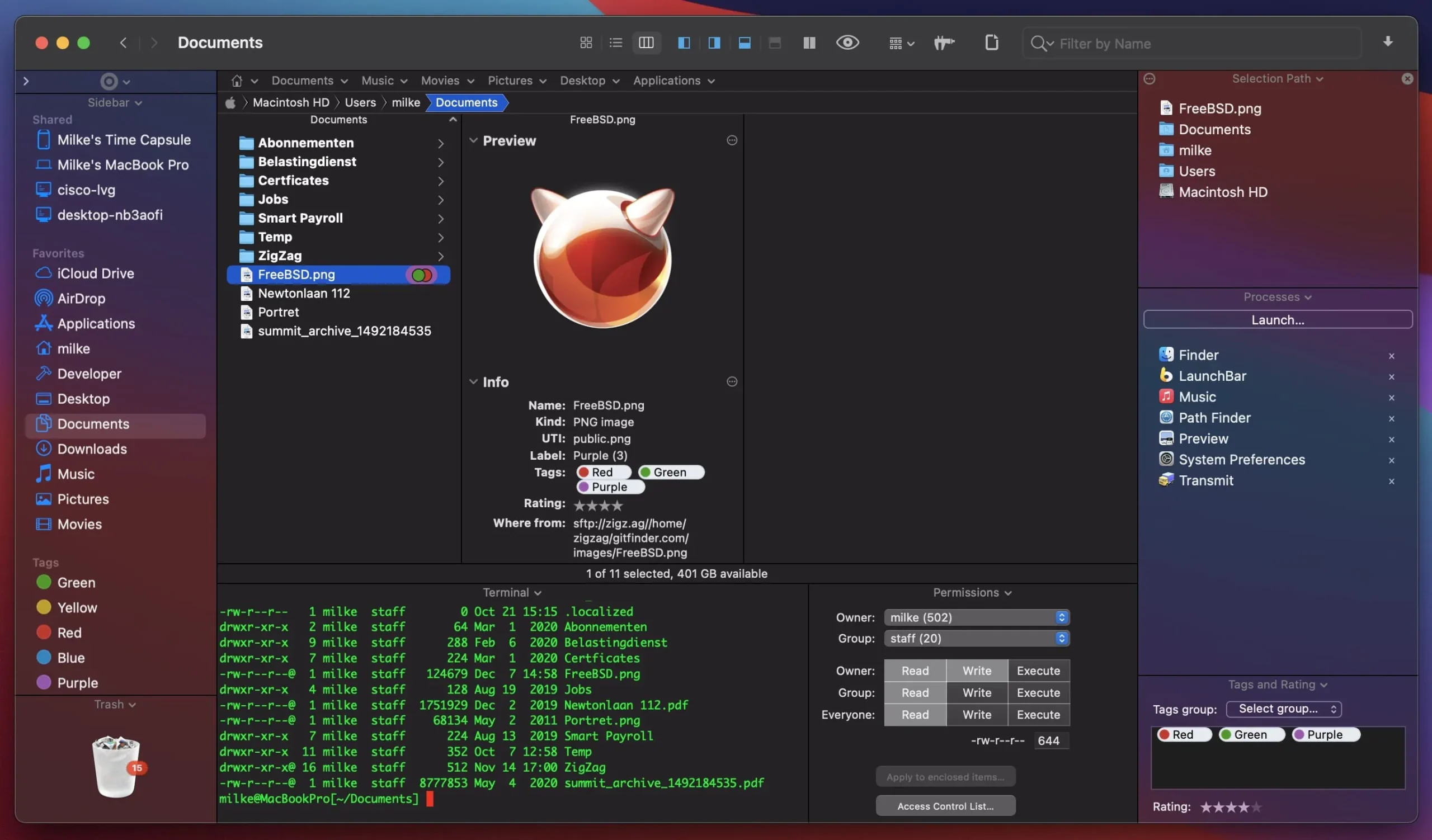
One of the best file managers is Path Finder, which has a well-designed interface that includes tabs, the ability to preview documents or audio/video files, process management, archive management, application installation and removal, system hotkey changes, CD/DVD/Blu-ray disc image conversion, dual-panel functionality, and much more.
With features like full keyboard navigation, a built-in FTP client, tabbed browsing, customized folder displays, easy search, and flexible file selection, PathFinder replaces the traditional Finder.
The folders in Path Finder’s UI are identical to those in Finder, but it has extra buttons and tabs that resemble those in Safari. Although you can utilize extra navigation elements like tabs and links, the navigation is the same as Finder’s.
Main Features:
- Our file manager is not an exception to the rule that tabs are the best graphical component in applications.
- The tabs in Path Finder are very user-friendly.
- You may effortlessly drag and drop files between tabs in addition to always being able to see which folders are open and quickly switch between them.
- Tab settings, which are effectively distinct, customized workplaces, are another fantastic feature.
- For instance, if you’re working on a project and need to quickly access all pertinent folders, programs, and downloads, this is quite handy.
- The folders you most recently opened are likewise stored in tab sets.
The Drop Stack
It is a place where files can be temporarily stored while being transported. Moving files to new folders is much easier as a result.
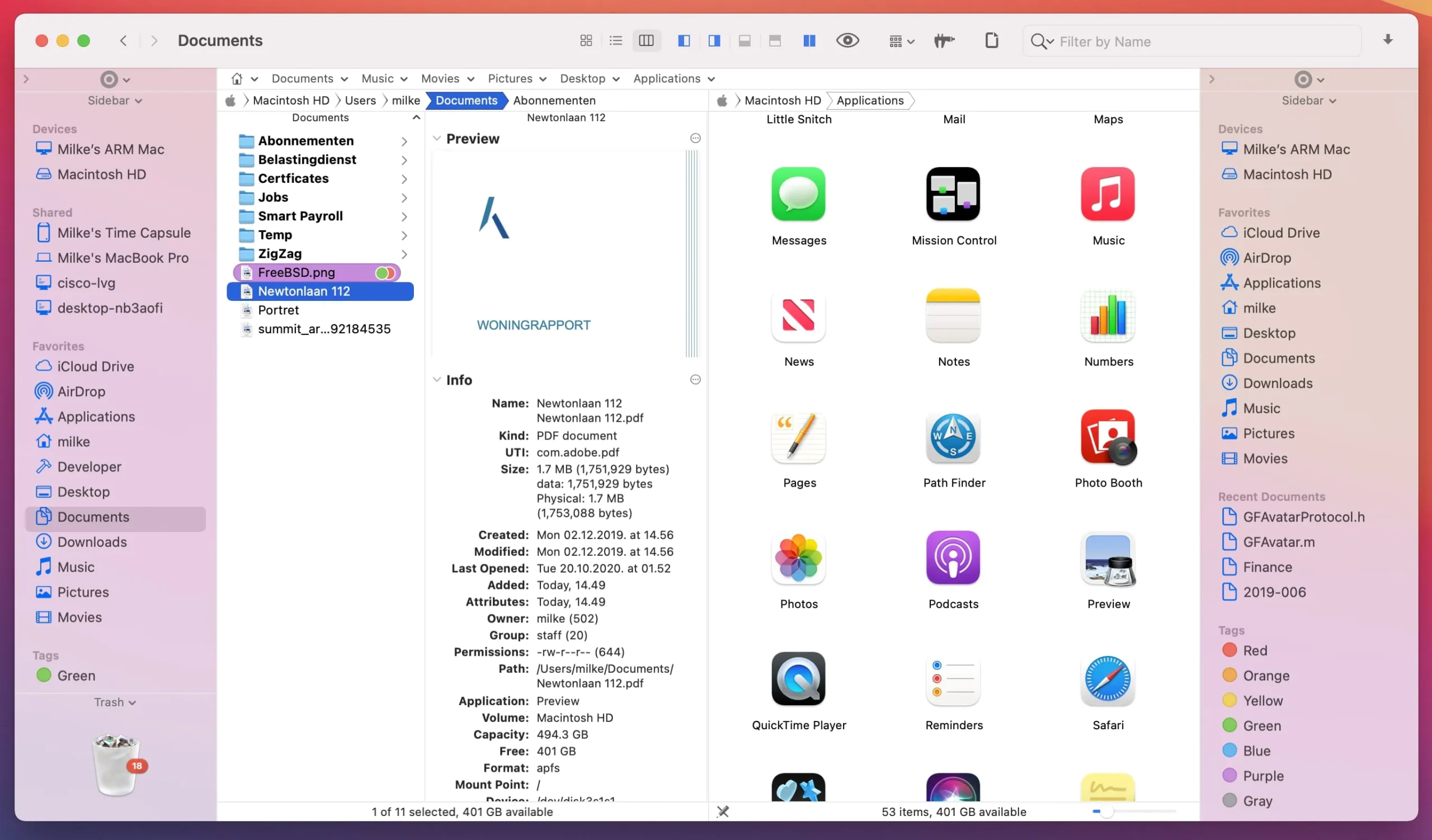
You may view two folders at once with Path Finder’s “two-pane explorer” view, which divides the window in half. When transferring files across folders or comparing folder contents, this is incredibly helpful. Every pane functions as an independent file browser. Clicking the icon in the lower left corner will bring up this view.
Dual-pane view of Path Finder
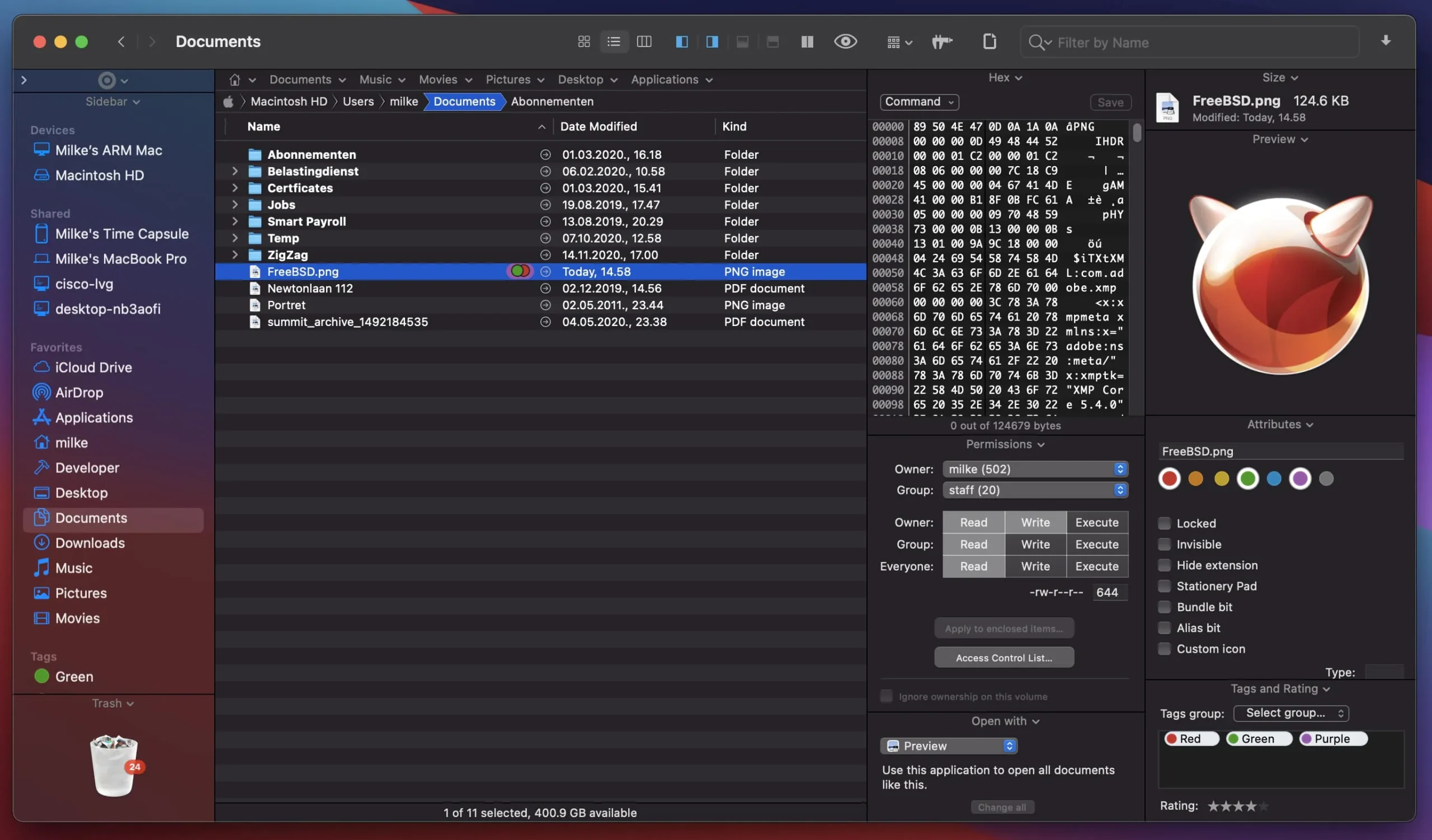
You may show more information in the browser by using view switches and sections. When the view switcher icon is selected, the bottom of the screen is split, displaying customizable details about the chosen files. While file information is displayed on the left, right, or bottom of the browser, sections serve the same purpose.
Modules for Path Finder
You can use Pathfinder’s search box in the upper right corner to filter files by type, extension, or keywords. Click the search icon in the upper right toolbar, type your search phrase, and then click “+” to add search parameters if you wish to choose files based on certain criteria.
Utilities
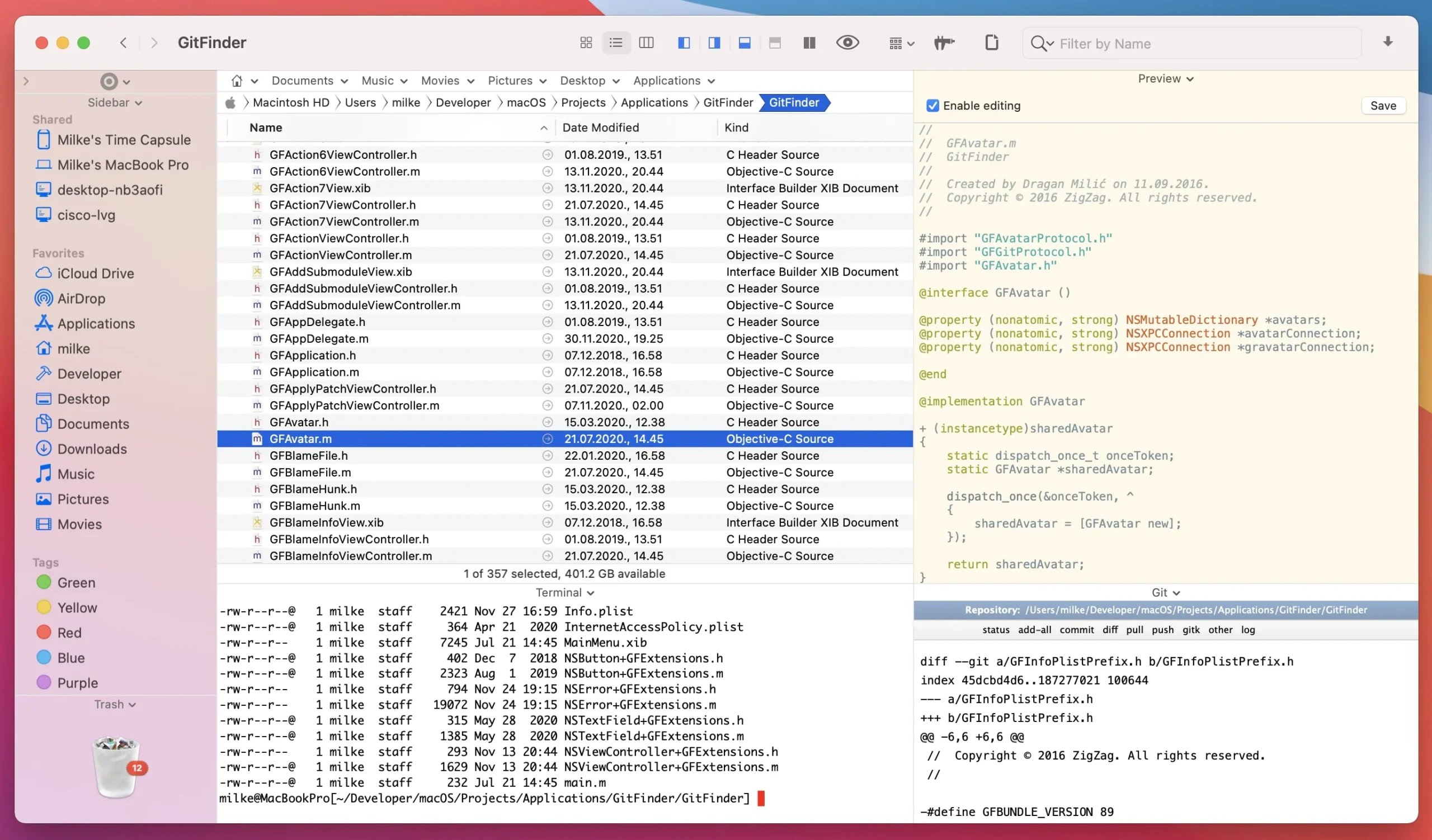
You don’t need to start additional programs because Pathfinder provides extra tools for specific jobs. Among Pathfinder’s features are a file archiver, an application launcher, a text editor, and a basic image editor.




Leave a Comment